Getting Started
This walkthrough takes an empty actor and gets a working skill check on screen, reacting to player input.
1. Enable the plugin
Section titled “1. Enable the plugin”Enable Radial Skill Check in Edit → Plugins, then restart the editor if prompted. The plugin is self-contained; no extra project setup is required.
2. Add the component
Section titled “2. Add the component”-
Open the actor that should run skill checks (your player character is the typical choice).
-
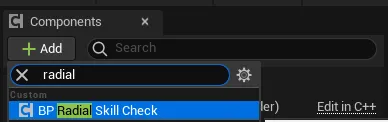
In the Components panel, click Add and choose BP Radial Skill Check. This is the ready-made component, already pointed at the gauge widget and the example sounds.
-
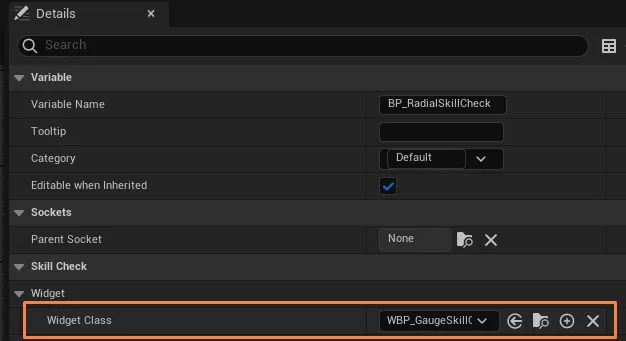
With the component selected, confirm Widget Class in its Details panel is set to WBP_GaugeSkillCheck.
3. Configure the default settings
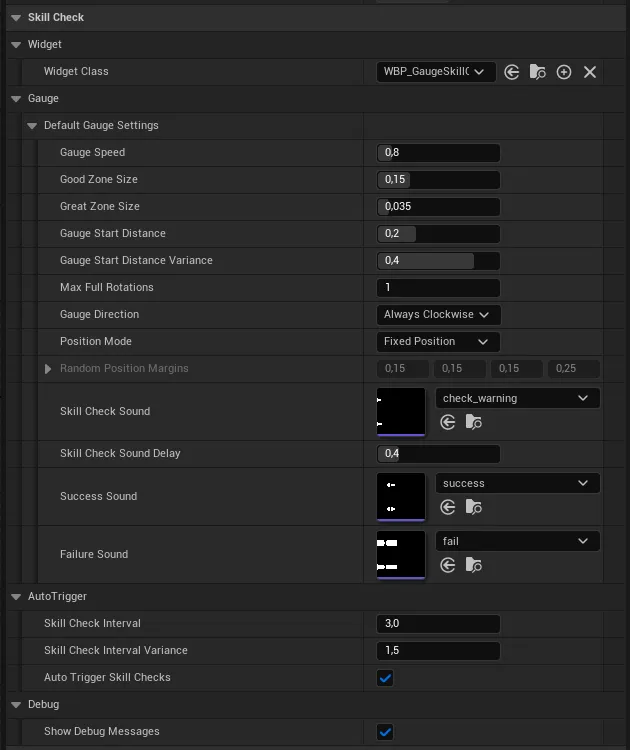
Section titled “3. Configure the default settings”Open Default Gauge Settings in the component Details. These values are the starting point for every check. The defaults are already tuned to a familiar feel (a good zone around 15% of the dial and a tight great zone around 3.5%), so you can leave them as-is for now. Every field is explained in Gauge Settings.
4. Start and stop a solving session
Section titled “4. Start and stop a solving session”A solving session is the window during which checks can appear. Open it with Begin Solving when the activity starts (for example, when the player begins repairing a generator) and close it with End Solving when the activity ends.
With Auto Trigger Skill Checks on (the default), checks appear by themselves at randomized intervals for as long as the session is open.
On activity start → Begin SolvingOn activity finish → End Solving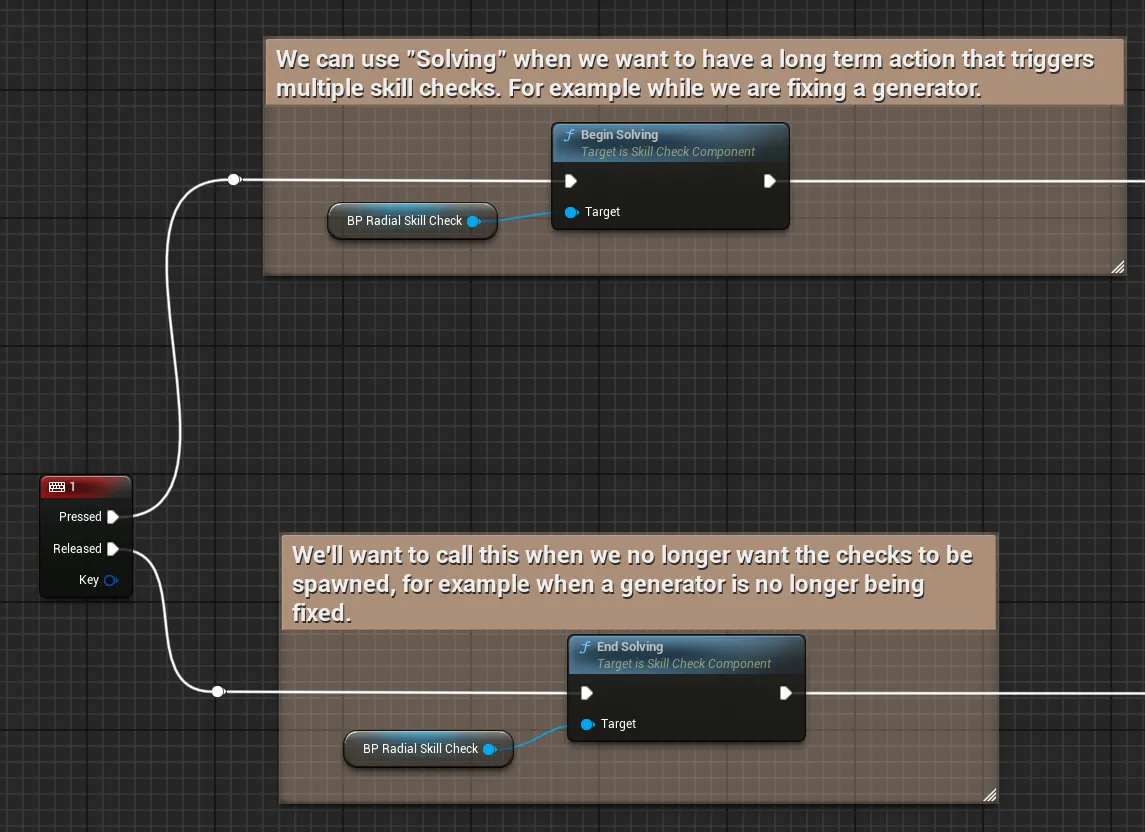
5. Let the player react
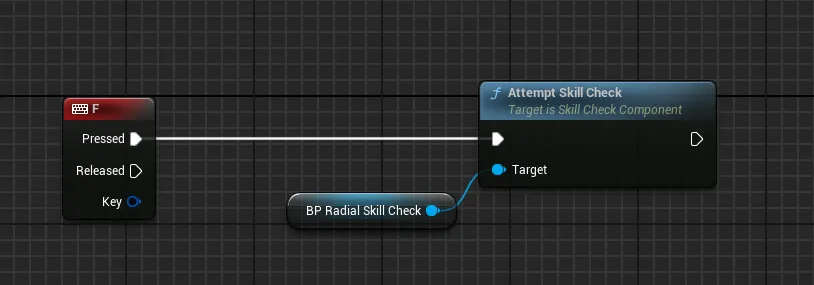
Section titled “5. Let the player react”Bind a key to Attempt Skill Check on the component. While a gauge is on screen, that call stops it and scores the result. If the player never reacts and the gauge runs out its allowed rotations, it counts as a miss automatically.
-
Add an input action (Enhanced Input or a legacy action mapping), for example the spacebar.
-
On that action, call Attempt Skill Check on your Skill Check component.
6. React to the outcome
Section titled “6. React to the outcome”Select the component and, in the Details → Events section, click the + beside On Skill Check Great, On Skill Check Good, and On Skill Check Miss to drop handlers into the Event Graph (or drag the component into the graph and add the red event nodes).
| Event | Fires when |
| --- | --- |
| On Skill Check Great | The player stops the gauge in the great zone. |
| On Skill Check Good | The player stops it in the good zone (but not great). |
| On Skill Check Miss | A wrong stop, or the gauge times out with no input. |
Wire these up to grant progress, play feedback, or interrupt the activity.